

Common questions about Randomill, including installation, activation, usage, compatibility, and more. If you have a question that isn’t listed here, head on over to the contact page – we’ll get back to you as soon as possible.
Installation
What are the system requirements?
Randomill works on both MacOS and Windows, and requires Illustrator CC 2021 (v25) or higher. You can see which version of Illustrator you have by opening Illustrator and going to Help > About Illustrator in the menu bar. The first line will tell you the version. The version can also be seen in the Creative Cloud desktop app in the apps list.
How do I install Randomill?
After purchasing Randomill, users receive an email with a download link to the installer files. Just run the installers, and you should be good to go.
Windows users: you may run into a warning that Windows has detected an unrecognized app from starting when trying to install Randomill. In this scenario, click ‘More info’ and then ‘Run anyway’.
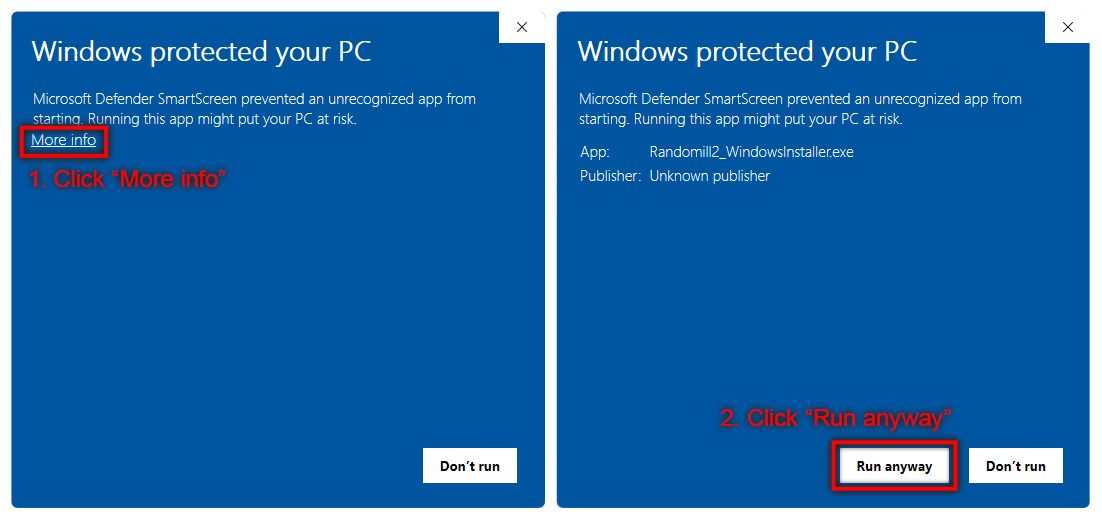
The reason Windows users might have to do this is because Windows Code Signing certificates that remove this “Microsoft SmartScreen” warning cost upwards of $1000 and just isn’t worth it for me to use. Apple’s code signing certificate for MacOS software only costs $100. I’ve signed the Windows .exe installer with my own self-signed certificate that you can look at if you want to check the installer signature.
- Right click the .exe file, select “Properties”
- Go to the “Digital Signatures” tab.
- Click on “Boguslavsky Design” in the signature list. It should be the only entry.
- Click “Details” to inspect the signature.
If you’re uncomfortable with installing Randomill this way, feel free to contact me and I can guide you through manual installation. All this .exe does is remove the old version of Randomill and unpack the new one to the installation directory.
How do I open Randomill after installation?
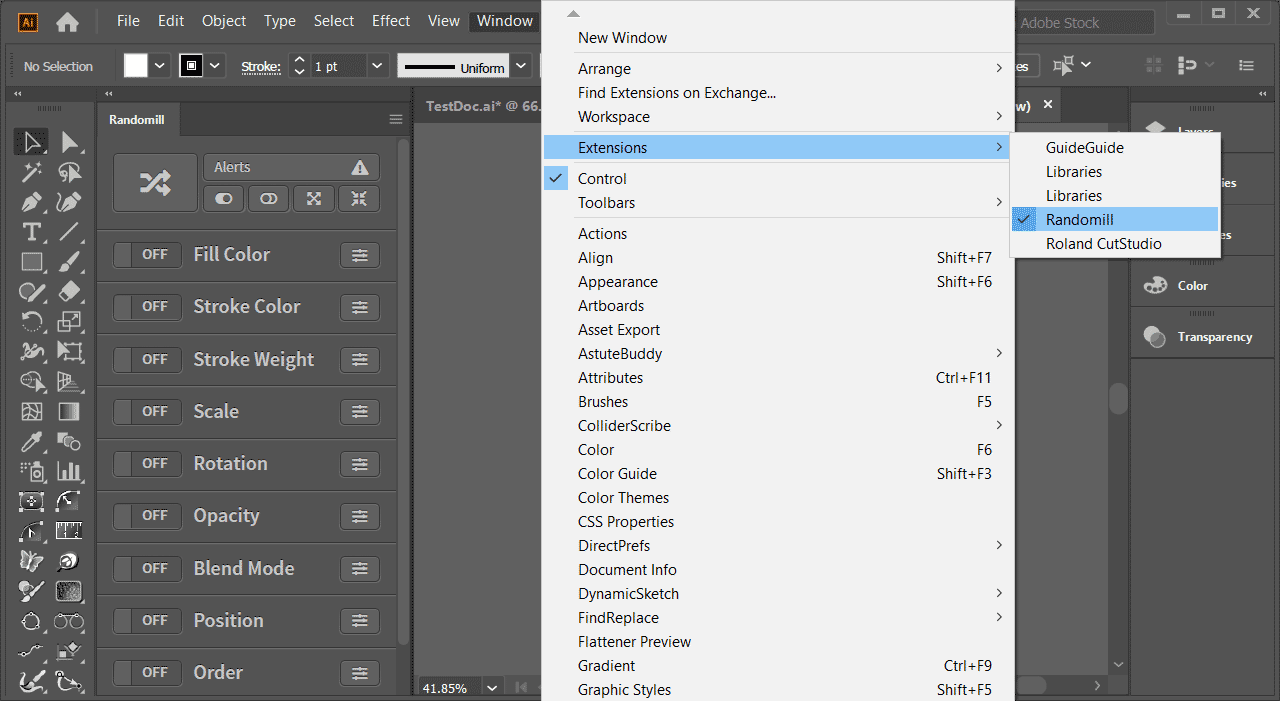
You can find Randomill in the Extensions menu in Illustrator under Window > Extensions > Randomill 2.
How do I uninstall Randomill?
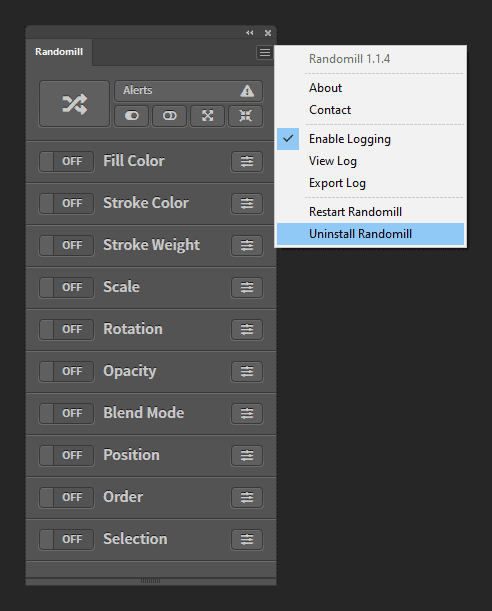
Uninstall instructions:
- Open the flyout menu and click ‘Uninstall Randomill’ This will open up a file explorer window to where Randomill is installed.
- Delete the contents of that folder.
- Restart Illustrator.
On Windows, Randomill can also be uninstalled from the ‘Add or Remove Programs’ section in the control panel.
MacOS installation directory:
/Library/Application Support/Adobe/CEP/extensions/RandomillWindows installation directory:
C:\Users\%YOURUSERNAME%\AppData\Roaming\Adobe\CEP\extensions\Randomill2How do I activate Randomill?
When Randomill is first launched, you will see a yellow banner saying the License is inactive. To activate Randomill, follow these steps:
- Click the ‘Activate’ button in the yellow banner.
- Enter the license key you received upon purchase into the text field.
- Click the ‘Activate License’ button under the text field.
- Randomill should now be activated!
You should see a green banner that says ‘Activation Successful’ at the top of the plugin panel.
Usage & Common Problems
Randomill is saying I have no internet connection, but I do.
Randomill connects to the internet through Adobe Illustrator, so if Illustrator can’t access the internet, neither can Randomill. Make sure that Illustrator is allowed to make outgoing internet connections in order to activate Randomill. This may involve editing your hosts file or unblocking Illustrator from within your firewall.
Some randomization functions are taking a long time. Why?
Processing large groups of objects can take a while due to the way that Illustrator allows external plug-ins and extensions to interface with it. For instance, random selection can take a while because objects are selected one at a time by having their ‘selected’ attribute changed inside of Illustrator. When you’re operating on thousands of objects at once, it can take a while. That being said, Randomill is optimized for performance as much as it can be. After testing performance of other comparable scripts/extensions, Randomill performs as good or better.
Items within groups are not being randomized. Why?
Randomill treats groups as single objects. This was intended to work as a way to cluster objects together during Randomization. For example, when randomizing colors in a grid of squares, you can group a few squares together, and their colors will all end up being the same.
Other
My license key isn’t working. What’s going on?
As of version 2.2.0, I have moved off of using Gumroad for licensing and payment processing. Randomill now uses an in-house license server and so Gumroad license keys don’t work with it. You can migrate your license for free by using your existing license key as a one-time coupon code during checkout. This will give you a 100% discount and a new license key.
Is there a free trial?
No, Randomill doesn’t have a trial mode, but there is a 14-day money-back guarantee. If Randomill doesn’t fit your needs, reach out through our contact page and we’ll issue a full refund.
Are updates free?
Minor updates and bug fixes are free. Major updates require separate purchases. So far there has only been one major version release, which tripled the feature set of Randomill from v1 to v2. In the future, I anticipate v3 maintaining the same core feature set, but migrating over the the Adobe UXP extension platform as Adobe gradually deprecates their CEP platform which Randomill and many other plugins rely on. So far, Illustrator doesn’t support UXP so I imagine this is still a few years away.
I bought Randomill v1 – can I upgrade to v2?
Yes, but v2 is a major new version and requires a separately purchased license. See this post for the changelog and everything that’s new in v2. If v1 is working fine for you and you don’t need any v2 features, feel free to stay on v1. I no longer support it, but as far as I know, it’s still working fine in the latest versions of Illustrator.