

This random select illustrator script allows for the fast and precise selection modification inside of Adobe Illustrator. Randomize your selection, select a specific subset of objects based on layer order, or select every Nth object in the selection.
Randomize Mode
Randomill can randomize scale in Adobe Illustrator with configurable axis settings, step sizes, and anchor points. Scaling can even be independently applied to stroke widths or fill patterns.

Randomly select a percentage of objects in Adobe Illustrator
Enter in a percentage value to select and Randomill will calculate and randomly select that percentage of objects from within the current selection. The selection algorithm is optimized so that it will select or deselect based on how many operations have to be completed. There is also error handling for selecting too many or too few objects.
Randomly select a specific number of objects
Select the Count submode and enter in how many objects you need to be selected. Randomill will randomly choose that many objects to select from within your current selection.
Use cases for random selection
Random selection is a ubiquitous feature that can be used in an almost unlimited number of ways. It’s especially useful for making repetitive patterns or background textures a bit more varied while still retaining their cohesive look.
This random select script is especially useful for creating sub-selections of objects for further randomization. For example, if you wanted to randomize a grid of squares to have a 2/3 red fill color, and 1/3 green fill color, you could fill the whole grid with green, and then randomly select 66% of the squares using this tool and fill them with red.

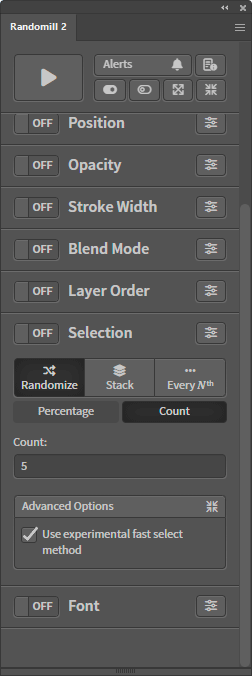
Stack Mode
This function allows you to select the top, middle, or bottom-most objects of the current selection, in terms of their position in the layer stack. You can specify a specific percentage or explicit number of objects to select.
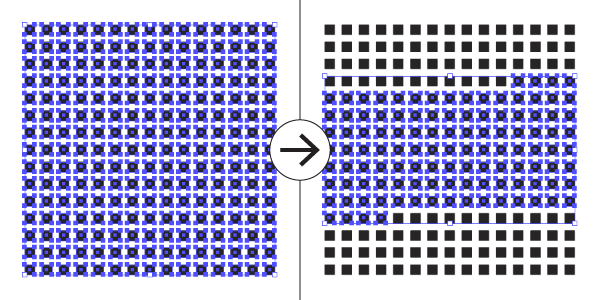
This is a utility function that doesn’t create interesting patterns by itself, but can prove itself useful by saving you time in creating precise selections quickly in Illustrator.
Let’s say you have a landscape illustration where there are a lot of individual raindrops or snowflakes scattered throughout the artboard. One thing you might want to do is to make the top 10% of the snowflakes a little brighter since they would be higher up in the sky, catching more light.
This function would allow you to do that by just selecting all of the snowflakes and executing the function with 10% dialed in.


Every Nth Mode
This function allows selection of every Nth object from a selection. Select every other object, every third object, every fourth object, etc.
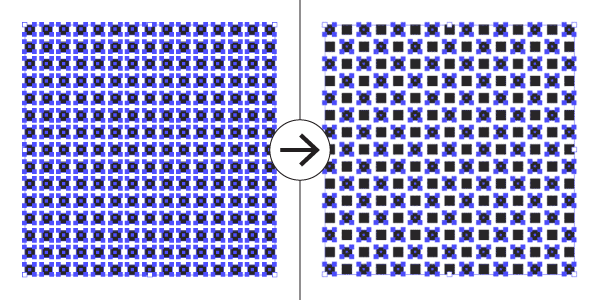
Optionally specify which object to start the selection from. For instance, select every other object, starting with the second object in the current selection.
Use cases
This is a utility function that doesn’t create interesting patterns by itself, but can prove itself useful by saving you time in creating precise selections quickly in Illustrator.
This function can be useful in creating checkerboard patterns that are more complicated than just black and white. Let’s say you want every 5th object in a grid of squares to be white. This selection utility script for Adobe Illustrator would let you do this quickly and easily.

Experimental Fast Select
Using the random selection function on very large selections may take a long time to finish and could even crash Illustrator depending on how large the selection is. The reason for this is that the script selects objects by flipping the object.selected = true flag, which automatically causes Illustrator to re-draw the document, negatively impacting performance. ‘Experimental Fast Select’ is a solution to this problem
Under the hood, fast select works is by creating a temporary action (the same type of action that you would record in the actions panel) and then execute that newly created action to select the objects.
The action will set the ‘note’ of that object (an obscure feature accessible through Illustrator’s attribute panel) to be contain some text. The action then tells Illustrator to select all objects that have that text within the note of the object.
This works much faster (by orders of magnitude) than the standard selection method, but may be less reliable, and is therefore an optional experimental feature. However, everyone should use it if it works for them since it’s so much faster.
Avoid using this if you absolutely cannot have the object note be overwritten.